Your notetaker, your look
Choose how your notetaker looks in your calls. Make its picture light or dark, show your workspace's logo on it, and give it the name it introduces itself by.


Since October, every notetaker has joined calls as Octo, on a picture chosen for it. That suits most calls, but not one where the picture should match the rest of your screen, or where the brand on it should be your company's. Now the picture is yours to set. Settings, Meeting recorder shows it as a call will, and each choice changes it there before it reaches a call.

Light or dark
Under Notetaker, Theme turns the picture light or dark, and the logo and the line under it change with it, so the words stay easy to read on either. Motion holds the logo and the line still for anyone who would rather the picture did not move. The preview above the choices changes as you make them, and the next call your notetaker joins shows what you see there. Each change crosses from the old picture to the new one, so the two can be compared as you choose.
- Rays turns the band of light across the picture on or off.
- Shapes does the same for the outlines turning behind the logo.
- Logo and Text hide the mark or the line under it.
Wears your logo
Brand puts your workspace's logo in the middle of the picture, on a tile of its own, in place of Octolane's mark. It is the logo your workspace already has, so there is nothing to upload, and a workspace without one gets a tile coloured from its name. The people on the call see your company on the notetaker that joined it.
Its own name
Name sets what the call lists your notetaker under, and the name it gives when it says hello and explains why it is there. A team that sends one to every customer call can call it after the company, and someone who would rather it read as their assistant can give it their own. Leave it empty and it stays Octo. The preview shows the name as you type it, so you can see it in place before it reaches a call.
Also in this update
Smaller changes that shipped alongside it, grouped by kind. Open a group to see what changed, and where in Octolane it lives.
- MeetingsA meeting's page has the Record button too, so you can turn recording on or off before the call.
- HomeChoose the three figures Recent performance shows, and drag them into the order you want.
- RecordsImporting accounts from a CSV matches each column to a field, then shows what is added and what is updated.
- SettingsChoose who can send from your mailbox, only you, everyone or the teammates you pick, from its menu in Email & calendar.
- SettingsMailboxes teammates share with you are listed in Email & calendar, where you can make one your default.
- ChatFiles you ask for in chat are attached straight away, in a short list that opens a preview of each.
- ChatSending every email in a list works after you have sent one of them on its own.
- RecordsTyping quickly in Edit opportunity no longer ends in an error.
- TasksA task whose text ends in a mention opens, and Reload page reloads the page.
- ChatLong session titles show in full in the side panel.
- NotetakerMeetings to record shows the rule your notetaker follows, rather than No rule chosen yet.
- SettingsEmail & calendar shows how each account's sync is going, and its menu resyncs it or makes it your default.
- HomeUpcoming meetings rows always open the meeting page, where you can read the prep and join.
- ChatEmails drafted in chat show who is on Cc, and say Email sent once they have gone.
- RecordsAdd column no longer offers Company logo and Avatar, which only ever held a link to an image.
- WorkspacePages arrive without a spinner, and the sidebar loads in one piece rather than from the bottom up.
What comes next
Nothing needs switching on. Your notetaker keeps its look until you change it under Settings, Meeting recorder, and each person sets their own.
Octolane in ChatGPT
The official Octolane plugin is in ChatGPT's directory. Search, read and update your workspace from a conversation.
Using Octolane from ChatGPT used to mean adding a server by hand, with its address, its header and a key each in the right place. The official plugin replaces that. Find Octolane in ChatGPT's plugin directory, connect it with an MCP key, and your workspace is there in the conversation you are already having.

Ask about your pipeline
Ask in your own words and ChatGPT answers from your Octolane workspace. It can search by a term, a contact or a company name, and read the contacts, deals, emails and meetings that match. Octolane returns only what answers the request, so a question about one account brings back that account and not your whole CRM. Those answers then sit in your ChatGPT conversation beside whatever else you are working on, ready to be turned into a plan, a summary or a message.
Update records as you go
When a call moves a deal, say so in the conversation. ChatGPT sends the field and the value you asked for, and Octolane writes them to the record. It can update a contact or create a deal the same way, so nothing waits until you are back in the app, and the next person to open that record sees what changed.
Decide what it can reach
The plugin connects with an MCP key you create yourself. The key belongs to you, so ChatGPT reaches only the workspace it was made in and only what your own account can already see or change. The plugin adds no access of its own, so it can never do more than you can in the app. Remove the plugin from ChatGPT's settings whenever you like, and revoke the key to cut off access on Octolane's side as well.
- You enter the key in ChatGPT's settings, never in a chat
- Octolane shows each key once, when you create it
- Octolane does not receive your ChatGPT conversation history
Connect it from Settings
Open Settings, then MCP, and create a key if you do not have one saved. Press Connect on the ChatGPT & Codex card, which opens the plugin's listing, and add your key when ChatGPT asks for it. The plugin works in Codex as well, and the card beside it does the same for Claude.
Also in this update
Smaller changes that shipped alongside it, grouped by kind. Open a group to see what changed, and where in Octolane it lives.
- EmailsSaved email templates keep their blank lines as you wrote them.
- RecordsColumn menus stay on screen when a table is scrolled to the right.
- MeetingsNext Meeting fields no longer show a date that has passed.
- ChatContinue from here stays in the chat you pressed it in.
What comes next
Nothing needs switching on. The plugin is there for every workspace from today, and your keys stay under Settings, MCP, ready to revoke at any time.
Set up a pipeline in one step
New pipeline is one form now. Describe your pipeline in a sentence, start it from a spreadsheet, or shape its stages and fields before you create it.
A new pipeline used to take two screens. You picked a template from a grid, named it on a second step, and only saw its stages once it was made. This release puts the whole pipeline on one form, so you can see its name, its fields and its stages before you create it, and start it from what you already have.

Describe it in a sentence
Choose Describe your pipeline and say what you sell and to whom. Draft pipeline turns the sentence into stages and fields, and gives the pipeline a name if it has none yet. Example sentences sit under the field, drawn from the teams Octolane works with, and one press drafts any of them. While a draft runs the field is held and the button says Drafting pipeline, and the stages and fields fill in together when it is done. A name you already typed is kept, and anything you change after the draft stays as you left it.
Start from a spreadsheet
Drop a CSV on the form and its columns become fields, typed from the values in its first 500 rows. Its Stage column becomes the board, with won and lost stages closing it. An empty name takes the file's, so emea_renewals.csv becomes EMEA Renewals. A file the form cannot use says why in one line, whether it is not a CSV, too large, or has nothing new to add.
Shape it before you make it
The stages sit on the form as the board they will become. Add, rename and remove them, and drag them into order. Every pipeline carries the eight fields a deal always has, such as Deal size and Close date, and you can add your own beside them, each with its type. A pipeline holds up to 30 stages and 40 fields of its own.
- Return starts the next stage, and Tab walks their names
- A stage left unnamed is kept as Stage 1, Stage 2 and so on
- Templates still start a pipeline, with their own stages and fields
Told what is missing, where it is missing
Create pipeline answers every press. A missing name, a sentence not yet drafted or a board with no stages is said under the part it is about, and the cursor moves there. A board that is full, or a CSV with more columns than there is room for, says its limit in amber instead. Messages close on their own, and a failure keeps the form open with everything in it.
Also in this update
Smaller changes that shipped alongside it, grouped by kind. Open a group to see what changed, and where in Octolane it lives.
- PipelinesNew pipeline opens at its full height, rather than growing from its title.
- EmailsThe Support link in our emails writes to [email protected].
- PipelinesClear puts the New pipeline form back as it opened, and shows once you have changed something.
- UpdatesTry it on an update opens the feature where you are, rather than taking you to another page.
- PipelinesButtons whose words change, like Draft pipeline, stay centred as they resize.
What comes next
Nothing needs switching on. New pipeline opens from Pipeline settings and the sidebar on every plan, and lands you on the new pipeline once it is made.
Find the right record fast
Search in the command bar now tells records of one name apart, sorts them by kind, and shows a record's key fields before you open it.
The command bar is how most people get to a record, and its results used to read alike. Two companies of one name were two identical rows, people and deals were mixed in one list, and the only way to check a record was to open it. This release makes a search answer the question before you click.
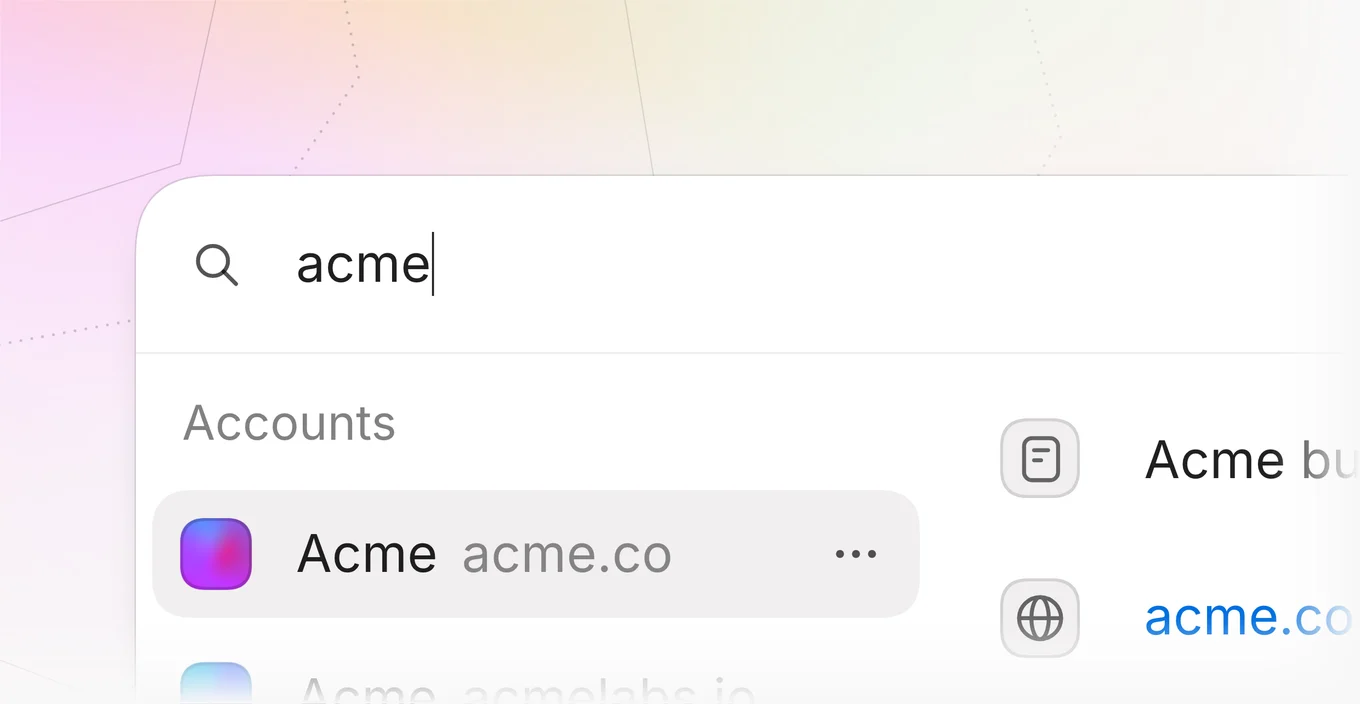
Tell similar records apart
Every result now shows what tells it apart beside its name. A contact shows their email and an account its domain, in a quieter grey, so two companies called Acme, or two people with the same name, read as different rows at a glance. On a narrow window the name keeps its room first, and the detail gives way before the name is ever cut. The email or domain is the one the record already holds, so there is nothing to fill in.
Results sorted by kind
Results come in sections, one for accounts, one for contacts and one for deals, each under its own heading. The sections follow the best match, so the record you most likely meant is still at the top, and records keep their order inside each section. Creating a new account from your search sits at the end of the accounts.
See a record before you open it
Point at a result, or move to it with the arrow keys, and a pane beside the list reads the record. Each kind shows the fields its own page leads with, so the pane answers the usual question without a click. It follows the result you are on, and closes when you leave the list, so it never stands open beside a record nobody is pointing at. A record that holds only its required fields shows just those, with nothing left blank. A deal's stage wears its own colour, as it does on the board.
- An account shows what it does, its size, revenue and location.
- A contact shows their email, title, company and phone.
- A deal shows its stage, size, odds, close date and contact.
Every field wears one icon
A field now has the same icon in the preview, in your tables and in the pipeline form, all drawn from one set at one weight. Hover an icon and its tooltip names the field and the kind of data it holds, such as text, a number or a list of tags. Industry, seniority and every email and meeting date now have an icon of their own.
What comes next
Nothing needs switching on. Press Command K anywhere in Octolane and search for any account, contact or deal you have, on every plan, starting today.
A new way to write tasks
The New task form is rebuilt. Set a due date in one click, style and link your words, and keep a task you have not saved yet.
A task is often the first thing you write after a call, and the form used to slow that down. Dates opened a second window, the text could not be styled, and pressing Escape threw away what you had typed. This release rebuilds the form to match the command bar it opens from. It is quicker to fill in and it keeps your work.
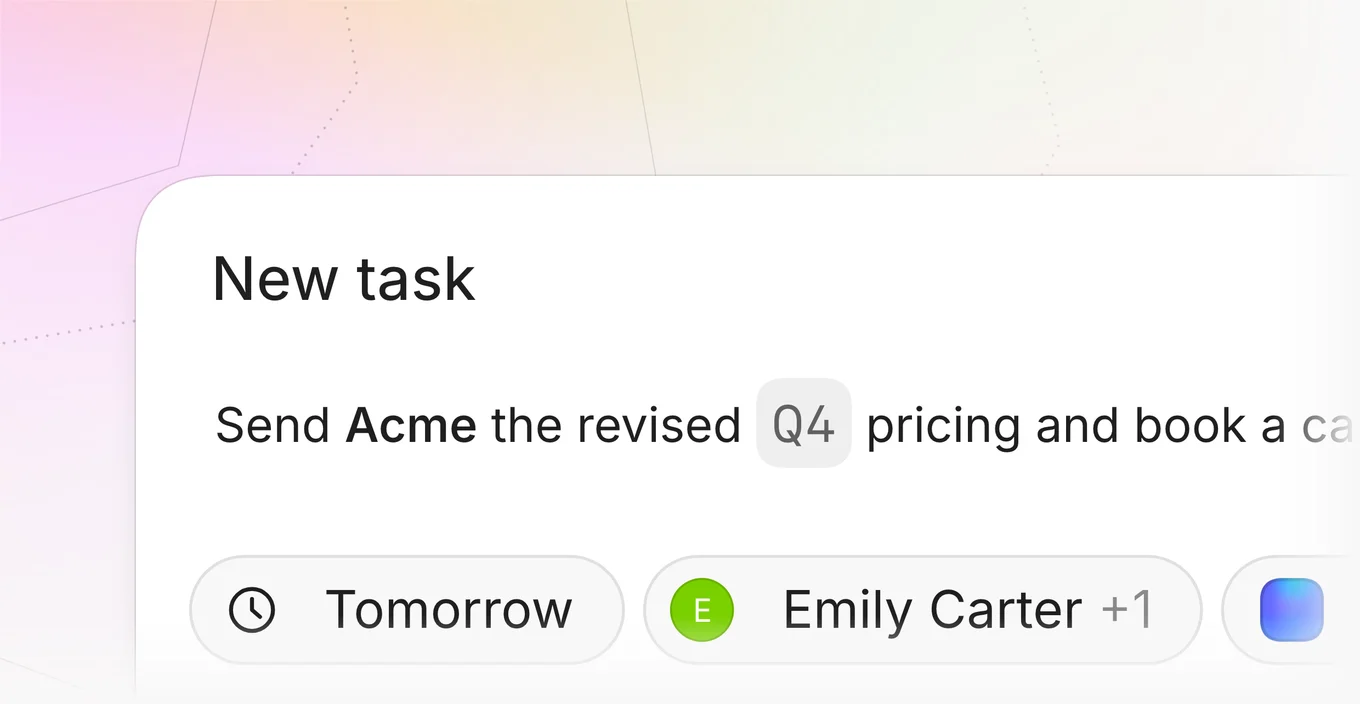
Set a due date in one click
Due opens a date picker right under its pill, where it used to open a second window over the form. Across the top you can type a day, set the hour in quarter hours and choose the timezone that hour is read in. The days a task is usually given sit beside the calendar, and one press sets the date and closes the picker, so you are back in the form straight away. The day you chose shows a tick, and each one shows its date when you point at it.
- Today and Tomorrow
- In one week or in two weeks
- In one month, a calendar month from today
Style your words, add a link
Select a few words and a small bar appears above them. It makes text bold, italic, underlined, struck through or code, and the styles can be combined, so a name can be bold and a figure can sit on its own grey plate. Link turns the bar into two fields, one for the words and one for the address, so a document or a meeting can sit on the word that names it. Web, email and phone addresses all work. A task is one short paragraph of up to 500 characters, so Enter creates it.
Pick up where you left off
A new task you close without saving is kept, with its text, due date, people and records. It comes back the next time you open a blank form, and it is cleared once the task is created. A stray Escape or a click outside the form no longer costs you what you wrote. A draft is kept for the browser session, and each workspace keeps its own.
Finish a task where you opened it
Editing a task now has a menu beside Save task, with Mark as done and Delete task. A task that is already finished offers Mark as not done instead. Marking a task done says so with an Undo, and so does the box in the Tasks table, which used to change without a word. Creating a task shows Task created once it is saved, and deleting one or several says how many went.
Choose several people at once
The assignee and record lists now stay open while you choose, so three teammates or two accounts take one visit instead of three. Records show their logos or photos, a tick marks the ones already linked, and a search that finds nothing says so. A person wears the same round photo in the list and on the pill.
What comes next
Nothing needs switching on. The new form opens from the Tasks page, the command bar and any record page, on every plan, and it is there starting today.