Shared mailboxes
Share a mailbox with the teammates who answer it, send from the ones shared with you, and give each person a role that fits what they do.


A sales inbox is rarely one person's. Letting a teammate send from yours used to mean a separate settings page and a Save button, and the mailboxes shared with you were nowhere to be seen. Now who can send is chosen in the mailbox's own menu, shared mailboxes sit beside your own, and every member of the workspace has a role that says what they can change.

Choose who can send
In Settings, Email & calendar, each of your mailboxes has a menu, and Sending permission is in it. Only you keeps the mailbox to yourself. All members lets everyone in the workspace send from it, people who join later included. Selected opens your team, so you can tick the teammates who answer that inbox with you. Each choice saves the moment you make it, and a count beside the row says how many people can send. You are always one of them, since the mailbox is yours.
Send from a shared inbox
When a teammate shares a mailbox with you, it appears under Shared accounts, below your own, with the name of the person it belongs to. You can make it your default, so what you write sends from it unless you pick another. Only its owner can resync it, change who can send or disconnect it.
A role for everyone
Members lists everyone in the workspace with their role, and each person's menu changes it. Owners can change any setting, invite people and manage billing. Admins can change some settings and invite people. Members can invite people and use everything, without changing settings. Inviting someone asks for their role up front, so they arrive with the right one.
- Removing a member asks you to type their name first.
- An invitation can be cancelled from its row.
- Your password is changed from its own page in Settings.
One place for email
Mailboxes used to have a settings page of their own, listing the same Google accounts as Email & calendar. That page is gone, and links to it now land in Email & calendar, where each account says how its sync is going. Its menu holds everything you can do with it, from resyncing it to choosing who can send from it.
Also in this update
Smaller changes that shipped alongside it, grouped by kind. Open a group to see what changed, and where in Octolane it lives.
- SettingsAPI keys and MCP keys take a name, and any key can be renamed or deleted.
- SettingsWebhooks are listed with each platform's own logo, and open in a dialog to edit.
- RecordsThe table's toolbar names View, Filter, Sort and Display, and says which filters and sorts are on.
- HomeThe recording indicator stays hidden while recording is off.
- NotesA note no longer closes in the middle of an AI review, so the corrections you accepted stay.
- RecordsClicking a contact in a cell's list keeps it, and empty cells open their menu.
- SettingsPipelines, Integrations, Routines, Stale deals, Slack and MCP are laid out as rows you can act on in place.
- SettingsYour profile and the workspace's name and logo save as you change them, with no Save button.
- SettingsBack returns you to the page you came from.
- RecordsKanban cards show two rows of detail, and the record preview is narrower.
- RecordsDeals open faster in the side panel, their neighbours' activity already loaded.
What comes next
Nothing needs switching on. Your mailboxes stay yours alone until you choose otherwise, from each one's menu in Settings, Email & calendar, at any time.
Your notetaker, your look
Choose how your notetaker looks in your calls. Make its picture light or dark, show your workspace's logo on it, and give it the name it introduces itself by.
Since October, every notetaker has joined calls as Octo, on a picture chosen for it. That suits most calls, but not one where the picture should match the rest of your screen, or where the brand on it should be your company's. Now the picture is yours to set. Settings, Meeting recorder shows it as a call will, and each choice changes it there before it reaches a call.

Light or dark
Under Notetaker, Theme turns the picture light or dark, and the logo and the line under it change with it, so the words stay easy to read on either. Motion holds the logo and the line still for anyone who would rather the picture did not move. The preview above the choices changes as you make them, and the next call your notetaker joins shows what you see there. Each change crosses from the old picture to the new one, so the two can be compared as you choose.
- Rays turns the band of light across the picture on or off.
- Shapes does the same for the outlines turning behind the logo.
- Logo and Text hide the mark or the line under it.
Wears your logo
Brand puts your workspace's logo in the middle of the picture, on a tile of its own, in place of Octolane's mark. It is the logo your workspace already has, so there is nothing to upload, and a workspace without one gets a tile coloured from its name. The people on the call see your company on the notetaker that joined it.
Its own name
Name sets what the call lists your notetaker under, and the name it gives when it says hello and explains why it is there. A team that sends one to every customer call can call it after the company, and someone who would rather it read as their assistant can give it their own. Leave it empty and it stays Octo. The preview shows the name as you type it, so you can see it in place before it reaches a call.
Also in this update
Smaller changes that shipped alongside it, grouped by kind. Open a group to see what changed, and where in Octolane it lives.
- MeetingsA meeting's page has the Record button too, so you can turn recording on or off before the call.
- HomeChoose the three figures Recent performance shows, and drag them into the order you want.
- RecordsImporting accounts from a CSV matches each column to a field, then shows what is added and what is updated.
- SettingsChoose who can send from your mailbox, only you, everyone or the teammates you pick, from its menu in Email & calendar.
- SettingsMailboxes teammates share with you are listed in Email & calendar, where you can make one your default.
- ChatFiles you ask for in chat are attached straight away, in a short list that opens a preview of each.
- ChatSending every email in a list works after you have sent one of them on its own.
- RecordsTyping quickly in Edit opportunity no longer ends in an error.
- TasksA task whose text ends in a mention opens, and Reload page reloads the page.
- ChatLong session titles show in full in the side panel.
- NotetakerMeetings to record shows the rule your notetaker follows, rather than No rule chosen yet.
- SettingsEmail & calendar shows how each account's sync is going, and its menu resyncs it or makes it your default.
- HomeUpcoming meetings rows always open the meeting page, where you can read the prep and join.
- ChatEmails drafted in chat show who is on Cc, and say Email sent once they have gone.
- RecordsAdd column no longer offers Company logo and Avatar, which only ever held a link to an image.
- WorkspacePages arrive without a spinner, and the sidebar loads in one piece rather than from the bottom up.
What comes next
Nothing needs switching on. Your notetaker keeps its look until you change it under Settings, Meeting recorder, and each person sets their own.
Octolane in ChatGPT
The official Octolane plugin is in ChatGPT's directory. Search, read and update your workspace from a conversation.
Using Octolane from ChatGPT used to mean adding a server by hand, with its address, its header and a key each in the right place. The official plugin replaces that. Find Octolane in ChatGPT's plugin directory, connect it with an MCP key, and your workspace is there in the conversation you are already having.

Ask about your pipeline
Ask in your own words and ChatGPT answers from your Octolane workspace. It can search by a term, a contact or a company name, and read the contacts, deals, emails and meetings that match. Octolane returns only what answers the request, so a question about one account brings back that account and not your whole CRM. Those answers then sit in your ChatGPT conversation beside whatever else you are working on, ready to be turned into a plan, a summary or a message.
Update records as you go
When a call moves a deal, say so in the conversation. ChatGPT sends the field and the value you asked for, and Octolane writes them to the record. It can update a contact or create a deal the same way, so nothing waits until you are back in the app, and the next person to open that record sees what changed.
Decide what it can reach
The plugin connects with an MCP key you create yourself. The key belongs to you, so ChatGPT reaches only the workspace it was made in and only what your own account can already see or change. The plugin adds no access of its own, so it can never do more than you can in the app. Remove the plugin from ChatGPT's settings whenever you like, and revoke the key to cut off access on Octolane's side as well.
- You enter the key in ChatGPT's settings, never in a chat
- Octolane shows each key once, when you create it
- Octolane does not receive your ChatGPT conversation history
Connect it from Settings
Open Settings, then MCP, and create a key if you do not have one saved. Press Connect on the ChatGPT & Codex card, which opens the plugin's listing, and add your key when ChatGPT asks for it. The plugin works in Codex as well, and the card beside it does the same for Claude.
Also in this update
Smaller changes that shipped alongside it, grouped by kind. Open a group to see what changed, and where in Octolane it lives.
- EmailsSaved email templates keep their blank lines as you wrote them.
- RecordsColumn menus stay on screen when a table is scrolled to the right.
- MeetingsNext Meeting fields no longer show a date that has passed.
- ChatContinue from here stays in the chat you pressed it in.
What comes next
Nothing needs switching on. The plugin is there for every workspace from today, and your keys stay under Settings, MCP, ready to revoke at any time.
Set up a pipeline in one step
New pipeline is one form now. Describe your pipeline in a sentence, start it from a spreadsheet, or shape its stages and fields before you create it.
A new pipeline used to take two screens. You picked a template from a grid, named it on a second step, and only saw its stages once it was made. This release puts the whole pipeline on one form, so you can see its name, its fields and its stages before you create it, and start it from what you already have.

Describe it in a sentence
Choose Describe your pipeline and say what you sell and to whom. Draft pipeline turns the sentence into stages and fields, and gives the pipeline a name if it has none yet. Example sentences sit under the field, drawn from the teams Octolane works with, and one press drafts any of them. While a draft runs the field is held and the button says Drafting pipeline, and the stages and fields fill in together when it is done. A name you already typed is kept, and anything you change after the draft stays as you left it.
Start from a spreadsheet
Drop a CSV on the form and its columns become fields, typed from the values in its first 500 rows. Its Stage column becomes the board, with won and lost stages closing it. An empty name takes the file's, so emea_renewals.csv becomes EMEA Renewals. A file the form cannot use says why in one line, whether it is not a CSV, too large, or has nothing new to add.
Shape it before you make it
The stages sit on the form as the board they will become. Add, rename and remove them, and drag them into order. Every pipeline carries the eight fields a deal always has, such as Deal size and Close date, and you can add your own beside them, each with its type. A pipeline holds up to 30 stages and 40 fields of its own.
- Return starts the next stage, and Tab walks their names
- A stage left unnamed is kept as Stage 1, Stage 2 and so on
- Templates still start a pipeline, with their own stages and fields
Told what is missing, where it is missing
Create pipeline answers every press. A missing name, a sentence not yet drafted or a board with no stages is said under the part it is about, and the cursor moves there. A board that is full, or a CSV with more columns than there is room for, says its limit in amber instead. Messages close on their own, and a failure keeps the form open with everything in it.
Also in this update
Smaller changes that shipped alongside it, grouped by kind. Open a group to see what changed, and where in Octolane it lives.
- PipelinesNew pipeline opens at its full height, rather than growing from its title.
- EmailsThe Support link in our emails writes to [email protected].
- PipelinesClear puts the New pipeline form back as it opened, and shows once you have changed something.
- UpdatesTry it on an update opens the feature where you are, rather than taking you to another page.
- PipelinesButtons whose words change, like Draft pipeline, stay centred as they resize.
What comes next
Nothing needs switching on. New pipeline opens from Pipeline settings and the sidebar on every plan, and lands you on the new pipeline once it is made.
Find the right record fast
Search in the command bar now tells records of one name apart, sorts them by kind, and shows a record's key fields before you open it.
The command bar is how most people get to a record, and its results used to read alike. Two companies of one name were two identical rows, people and deals were mixed in one list, and the only way to check a record was to open it. This release makes a search answer the question before you click.
Tell similar records apart
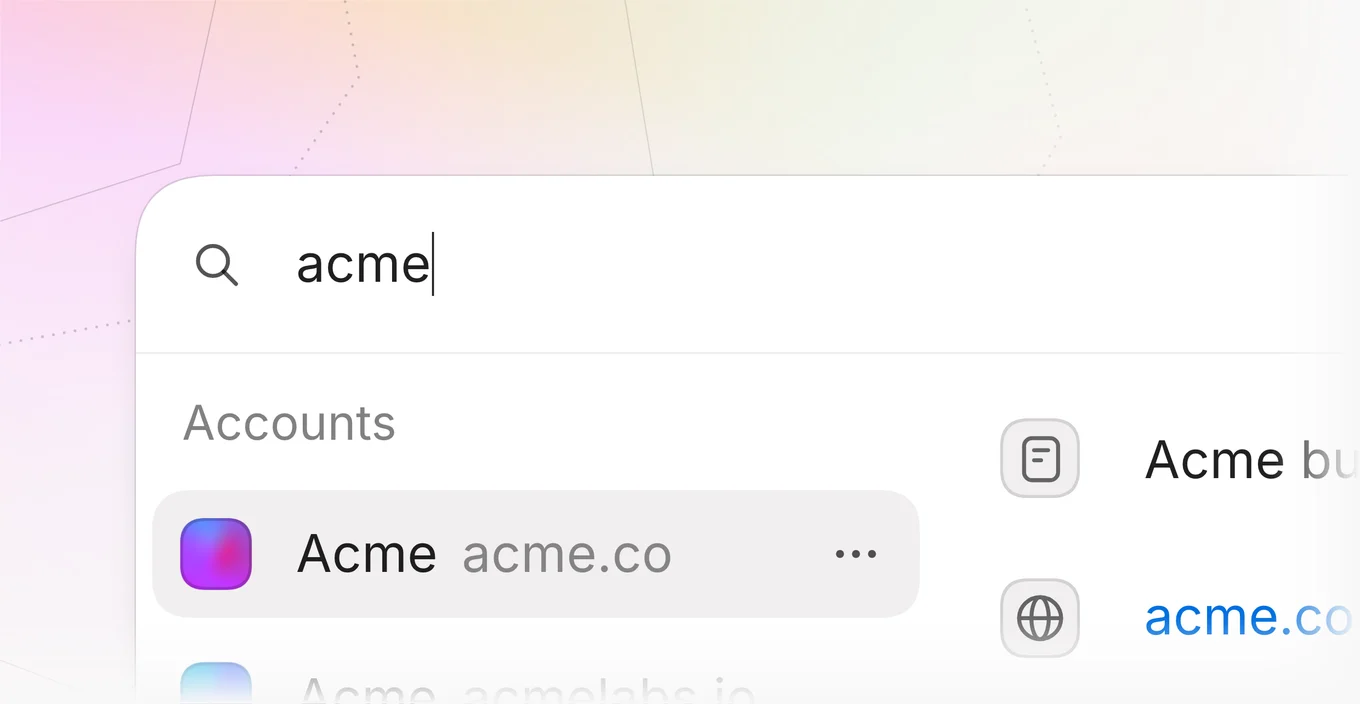
Every result now shows what tells it apart beside its name. A contact shows their email and an account its domain, in a quieter grey, so two companies called Acme, or two people with the same name, read as different rows at a glance. On a narrow window the name keeps its room first, and the detail gives way before the name is ever cut. The email or domain is the one the record already holds, so there is nothing to fill in.
Results sorted by kind
Results come in sections, one for accounts, one for contacts and one for deals, each under its own heading. The sections follow the best match, so the record you most likely meant is still at the top, and records keep their order inside each section. Creating a new account from your search sits at the end of the accounts.
See a record before you open it
Point at a result, or move to it with the arrow keys, and a pane beside the list reads the record. Each kind shows the fields its own page leads with, so the pane answers the usual question without a click. It follows the result you are on, and closes when you leave the list, so it never stands open beside a record nobody is pointing at. A record that holds only its required fields shows just those, with nothing left blank. A deal's stage wears its own colour, as it does on the board.
- An account shows what it does, its size, revenue and location.
- A contact shows their email, title, company and phone.
- A deal shows its stage, size, odds, close date and contact.
Every field wears one icon
A field now has the same icon in the preview, in your tables and in the pipeline form, all drawn from one set at one weight. Hover an icon and its tooltip names the field and the kind of data it holds, such as text, a number or a list of tags. Industry, seniority and every email and meeting date now have an icon of their own.
What comes next
Nothing needs switching on. Press Command K anywhere in Octolane and search for any account, contact or deal you have, on every plan, starting today.